
Key takeaways
- The main risk is usually not the AI model itself, but the information it can reach because of existing permissions and poorly managed content.
- Review access to SharePoint, OneDrive, Teams, and email before rolling out Copilot more widely.
- Use sensitivity labels, retention, and data loss prevention controls to reduce the chance of oversharing.
- Give staff clear rules on what they must never paste into an AI assistant.
- If you suspect sensitive data has been exposed, contain the issue first and then assess the business impact.
What data leakage through AI assistants means for an SME
For many small and medium-sized businesses, the appeal of an AI assistant is simple: save time, draft content faster, and help staff find information more quickly. The risk is just as simple. If the assistant can reach sensitive information, it may surface that information to people who should not see it, or help staff share it more widely than they intended.
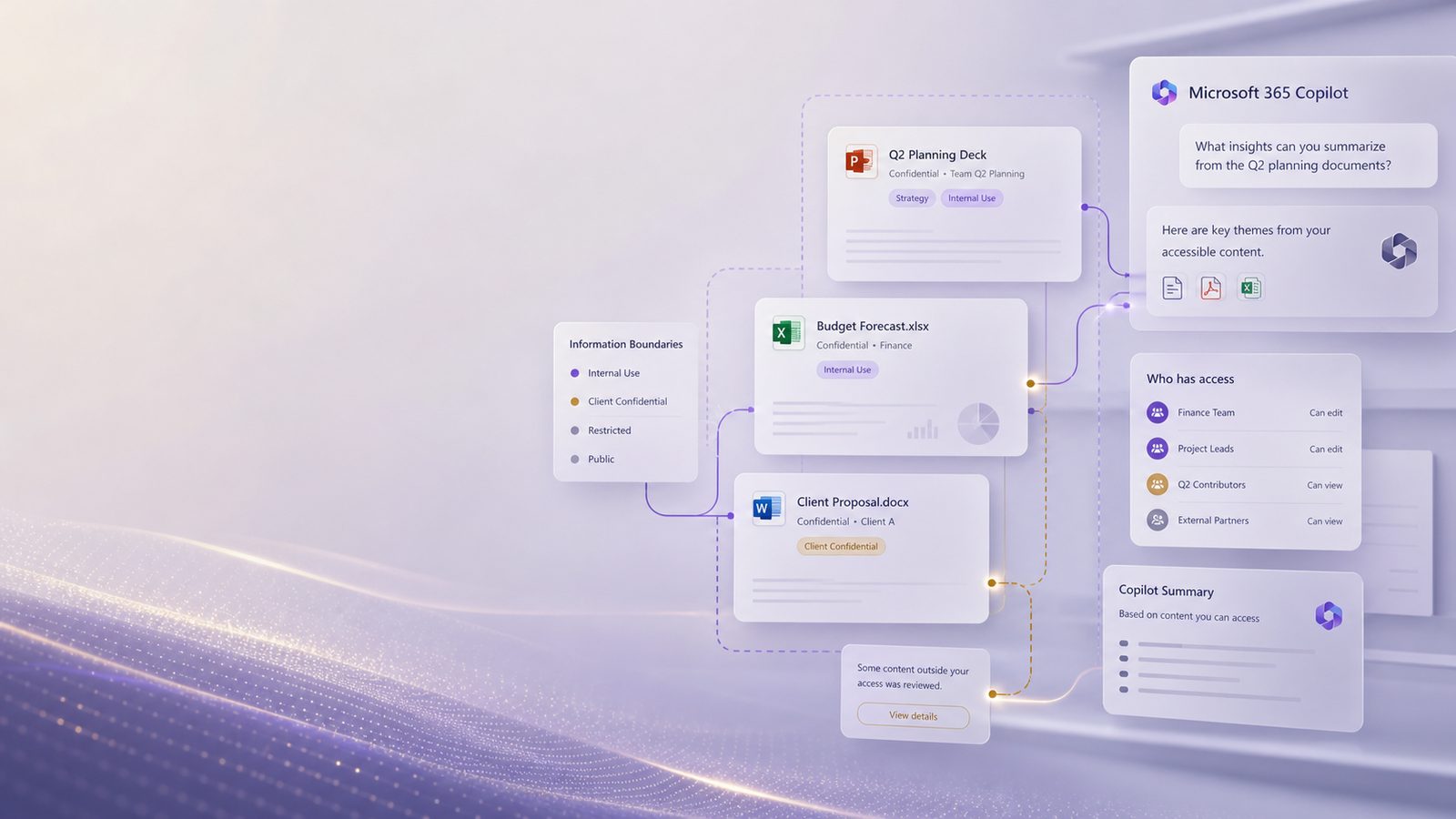
In Microsoft 365 Copilot, the main concern is usually not that the AI has somehow learned your secrets. It is that Copilot can work with the content your organisation already stores in email, files, chats, and shared workspaces. If those locations are messy, over-shared, or poorly governed, the assistant can make the problem more visible.
That matters because data leakage is not only a technical issue. It can affect client trust, commercial confidence, and day-to-day operations. A single misplaced document, a broad folder permission, or an over-helpful prompt can expose payroll details, pricing, contracts, or personal data. For an SME, the cost of cleaning that up can be far higher than the time saved by using the tool without preparation.
If you are already thinking about your wider Microsoft 365 setup, it is worth reviewing your secure baseline configurations for Microsoft 365 before rolling out Copilot more widely. The same basic discipline that protects email and file sharing also reduces the chance of AI-assisted oversharing.
Why Microsoft 365 Copilot can expose sensitive information
Copilot is designed to help users work with the information they already have access to. That is useful, but it also means the quality of your permissions and content management becomes critical. If a user can open a file, join a chat, or read a mailbox item, Copilot may be able to use that content when responding to a request.
Over-permissioned files and shared folders
One of the most common causes of leakage is simple over-sharing. Many businesses create shared folders for convenience and then leave them open long after the project ends. Others give broad access to whole teams when only a few people need it. Over time, this creates a large pool of information that is technically available to more people than intended.
Copilot does not create that access problem, but it can make the consequences more obvious. A user may ask for a summary of a project and receive details from files they did not know existed. That can lead to accidental disclosure inside the business, or to staff acting on information they were never meant to see.
Sensitive content in email, Teams and SharePoint
Email inboxes, Teams chats, and SharePoint sites often contain the most sensitive material in a business because they are where people actually work. Contracts, customer complaints, HR issues, finance discussions, and supplier negotiations all end up there. If those areas are not organised and access-controlled properly, Copilot can help people retrieve content that should have remained limited.
This is why data leakage through AI assistants is often a governance problem first and a technology problem second. The assistant is only as safe as the information environment around it.
Common privacy concerns businesses should understand
When leaders hear about AI privacy risks, they often picture a dramatic breach. In practice, the more likely issues are quieter and more routine. They still matter, because repeated small leaks can do real damage over time.
Personal data, client information and commercial secrets
Three categories deserve particular attention:
- Personal data, such as employee records, customer contact details, or health-related information.
- Client information, such as project notes, service issues, pricing, and contract terms.
- Commercial secrets, such as bids, margins, strategy documents, and product plans.
If Copilot can help a user find or summarise any of these from a location that was too broadly shared, the business may face reputational damage, loss of trust, and extra work to investigate what was exposed.
For organisations that handle sensitive information regularly, it is also sensible to consider whether a formal privacy review is needed. A practical starting point is data protection impact assessments, especially where new tools change how personal data is accessed or used.
What happens when staff paste sensitive content into prompts
Another common risk is staff entering sensitive information directly into an AI prompt. This may happen because they want a quick summary, a rewritten email, or help with a document. The problem is that people often treat the assistant like a private notebook, when in reality they are still using a business system.
Even if the tool is well configured, staff should not assume that every prompt is harmless. A prompt can contain confidential customer details, internal plans, or personal data. If that content is not necessary for the task, it should not be entered.
How to reduce the chance of oversharing before you enable Copilot
The safest way to use Copilot is to reduce the amount of sensitive information it can reach in the first place. That means tidying up your Microsoft 365 environment before you expand access.
Review who can access what
Start with the basics. Check who has access to shared folders, Teams channels, SharePoint sites, and key mailboxes. Look for access that was granted for a temporary project and never removed. Look for people who changed roles but kept old permissions. Look for external users who no longer need access.
This review does not need to be perfect to be useful. Even a focused pass over the most sensitive areas can reduce risk quickly. The aim is to make sure access matches current business need, not historical convenience.
Remove stale access and tidy up shared locations
Once you have identified excessive access, remove it. Then tidy up the places where sensitive information tends to accumulate. Archive old project spaces. Separate active work from closed work. Move confidential material out of general shared areas. Use clearer folder naming so staff can tell what is sensitive and what is routine.
This is also a good time to review your wider information handling habits. If your business has never defined where sensitive documents should live, Copilot will simply inherit that confusion. Good structure makes the assistant more predictable and easier to trust.
Practical Microsoft 365 settings and controls to check
Microsoft 365 gives you several ways to reduce leakage risk, but they only help if they are turned on and managed properly. The goal is not to block productivity. It is to make sure the right people can use Copilot safely.
Permissions in SharePoint, OneDrive, Teams and Outlook
Check the sharing settings in the main places where staff store and exchange information:
- SharePoint sites should have clear ownership and limited access by default.
- OneDrive should not become a long-term storage area for shared business documents.
- Teams should be used with the same discipline as any other shared workspace.
- Outlook mailboxes and shared mailboxes should be reviewed for unnecessary delegation.
Where possible, keep access narrow and intentional. If everyone can see everything, Copilot will only make that weakness easier to notice.
Sensitivity labels, retention and data loss prevention controls
Sensitivity labels help staff understand what kind of information they are handling. A clear label can remind people that a document is confidential, internal only, or restricted. Retention settings help you keep information for the right amount of time and avoid leaving old material lying around indefinitely.
Data loss prevention controls are also important. These are rules that help stop sensitive information being shared in the wrong way. For example, they can help detect when personal data or financial details are being sent outside the business or copied into the wrong place. Used well, these controls support safer use of Copilot because they reduce the chance that sensitive content is widely available in the first place.
If you want a broader view of how Microsoft 365 should be configured, the article on secure baseline configurations for Microsoft 365 is a useful companion piece.
How to stop or limit Copilot use when needed
There may be times when the right answer is not to roll out Copilot broadly. That is not a failure. It is a sensible business decision when the environment is not ready or when a specific team handles highly sensitive information.
When a temporary pause may be sensible
A temporary pause can make sense if you have just discovered widespread oversharing, if your document structure is in poor shape, or if you are still working out how staff should use the tool. It can also be appropriate if you are dealing with a sensitive incident and need to reduce the number of moving parts.
The point is to avoid creating a new risk while you are still fixing an old one. If the underlying information environment is not under control, Copilot can amplify confusion rather than improve productivity.
How to restrict rollout to specific users or groups
A phased rollout is usually the best approach for SMEs. Start with a small group of users who understand the business context and can give practical feedback. Choose teams that work with lower-risk information first. Keep highly sensitive functions, such as HR or finance, for later once controls are proven.
This approach lets you learn how the tool behaves in your environment without exposing the whole business at once. It also gives you time to refine guidance, permissions, and monitoring before wider adoption.
Simple staff guidance that reduces leakage risk
Technology alone will not solve this problem. Staff need clear, practical guidance in plain English. The message should be simple: Copilot is a business tool, not a private space, and it should be used with the same care as email or file sharing.
What staff should never enter into an AI assistant
Staff should avoid entering:
- Passwords, passcodes, or login details.
- Client confidential information unless it is genuinely needed for the task.
- Employee records, medical information, or other personal data unless approved.
- Commercially sensitive plans, bids, or pricing unless the business has agreed the use case.
It helps to give examples from your own business. People are more likely to follow guidance when they can see what it means in their day-to-day work.
How to use Copilot safely for everyday work
Encourage staff to use Copilot for low-risk tasks first, such as drafting routine emails, summarising non-sensitive meeting notes, or helping to structure a document. Remind them to check the output before sending it on. AI tools can be useful, but they can also be confidently wrong or too revealing if the input is poorly chosen.
For businesses that are building a wider AI policy, an AI governance policy template for UK SMEs can help turn these rules into something staff can actually follow.
A short checklist for SMEs before wider rollout
Before you expand Copilot use, ask yourself a few practical questions:
- Do we know where our sensitive information lives?
- Have we removed unnecessary access from shared folders and workspaces?
- Are our Microsoft 365 settings aligned with how the business actually works?
- Have staff been told what not to enter into an AI assistant?
- Do we know who owns the rollout and who will review issues?
If the answer to any of these is unclear, pause and fix the basics first. That is usually cheaper and less disruptive than dealing with a leak later.
What to do if sensitive data may already have been exposed
If you think Copilot has surfaced information it should not have, treat it as a business issue first. Do not assume the problem will sort itself out. Start by containing the issue and understanding the scope.
Contain the issue and review access
Check which users could access the content, where it was stored, and whether the permissions were broader than intended. If a document or workspace is the source of the problem, restrict access while you investigate. Preserve relevant records so you can understand what happened and when.
If the issue involves a wider Microsoft 365 environment, it may help to review your logging and investigation approach alongside the content itself. Good records make it easier to decide whether the issue is isolated or part of a wider pattern.
Assess business impact and decide next steps
Once you know what was exposed, consider the practical impact. Was it internal only, or could it have affected customers, suppliers, or employees? Was the information commercial, personal, or both? Do you need to notify anyone internally, and do you need specialist support to assess the exposure properly?
For some businesses, the right next step is simply to tighten permissions and improve guidance. For others, especially where sensitive personal data or regulated information is involved, a deeper review is sensible.
When to get extra help
You should consider outside support if your Microsoft 365 estate is large, if sensitive information is spread across many teams, or if you are unsure how Copilot is interacting with your existing permissions. A structured review can identify the biggest risks quickly and help you prioritise the fixes that matter most.
That kind of review is especially useful if you want to adopt AI without creating avoidable exposure. It can also help you connect the technical controls with the business process changes that make them work in practice.
If you would like help reviewing your Microsoft 365 setup, access controls, and AI rollout approach, speak to a consultant. A risk-based review can help you decide where Copilot is ready for wider use and where more work is needed first.
Used well, Microsoft 365 Copilot can save time and improve productivity. Used without preparation, it can surface information that was already too easy to reach. The difference is usually not the AI itself. It is the quality of your permissions, the discipline of your information handling, and the clarity of your staff guidance.
Frequently asked questions
What are the privacy concerns associated with artificial intelligence?
For SMEs, the main privacy concern is usually not the AI tool itself but the data it can access, store, or reveal. Risks include accidental exposure of personal data, client information, and commercial secrets through over-shared files, chats, or prompts.
How do I stop Microsoft 365 Copilot from running?
The practical answer depends on how your Microsoft 365 environment is licensed and configured. In many cases, the better approach is to limit rollout to specific users or groups, tighten permissions, and pause wider use until your information structure and controls are ready.
Comments are closed