
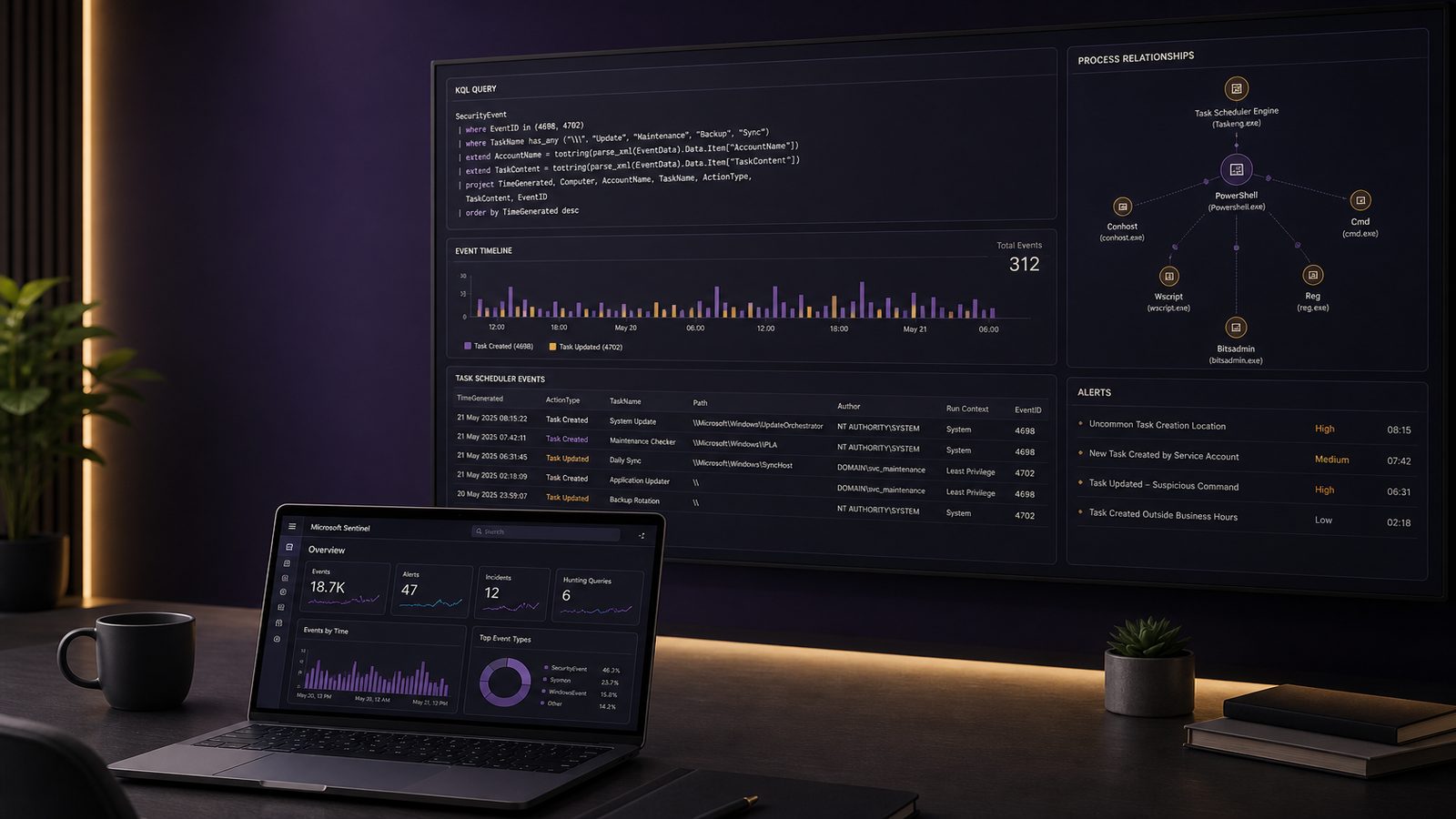
Scheduled tasks are a common Windows feature, but they are also a practical persistence mechanism for attackers. If an intruder can create or modify a task, they may be able to re-run code after reboot, user logon, or on a timer without needing an interactive session. For a small security team, that makes scheduled task hunting a useful, high-value activity because it can expose persistence early, before an incident becomes harder to contain.
In Microsoft Sentinel, the goal is not to chase every task creation event. It is to identify the tasks that do not fit the normal pattern for your environment, then investigate whether they are part of legitimate administration or something more concerning. That means combining KQL, baseline knowledge, and a clear triage process. If you are already using KQL threat hunting with Microsoft Sentinel, this article builds on that approach and applies it to one specific persistence technique.
Key takeaways
- Scheduled task persistence is worth hunting because it is native, reliable, and often blends into normal Windows administration.
- The most useful Sentinel hunts combine task creation data with process telemetry, command lines, and account context.
- Baseline by host role, task author, path, and frequency so you can focus on outliers rather than every scheduled task.
- Reduce false positives with tightly scoped allow-lists for known management tools and service accounts, not broad exclusions.
- Promote repeatable high-confidence hunt patterns into analytics rules and pair them with a clear triage and containment workflow.
Why scheduled tasks matter in persistence hunting
Attackers like scheduled tasks because they are native, reliable, and often overlooked. A task can launch a binary, script, or command line under a chosen account, and it can be configured to run at startup, at logon, or on a schedule. That makes it attractive for persistence, but also for staging, lateral movement support, and delayed execution.
In MITRE ATT&CK terms, scheduled task abuse maps to persistence and scheduled execution techniques. From a hunting perspective, that matters because it gives you a structured way to think about what you are looking for: task registration, task modification, task launch, and the processes that the task starts. In Sentinel, those stages are usually visible across Windows security logs, Sysmon, and endpoint telemetry, depending on what you have enabled.
The practical point is that task persistence often blends in with routine IT automation. Backup agents, patching tools, software deployment, and monitoring agents all use scheduled tasks. So the hunt needs to focus on outliers, not just volume.
What telemetry you need in Microsoft Sentinel
Good hunting starts with the right logs. For scheduled task persistence, the most useful sources are Windows event logs and endpoint process telemetry. In Sentinel, the tables you will usually rely on are SecurityEvent, SysmonEvent, and DeviceProcessEvents. If you are collecting from Microsoft Defender for Endpoint, DeviceProcessEvents is especially useful for understanding what the task actually launched.
On Windows, task creation and modification can appear in security logs and task scheduler operational logs, depending on your configuration. In practice, many teams find that the security log alone is not enough, because it may show the registration event but not enough context about the command line or the child process chain. Sysmon helps by adding process creation detail, including parent-child relationships and command lines, which are often the difference between a noisy alert and a useful hunt result. If you are tuning endpoint telemetry, the approach in tuning Sysmon configuration for high-fidelity process telemetry is directly relevant here.
At minimum, you want visibility into:
- Task creation and modification events.
- Task execution events or the processes launched by the task.
- Command line arguments for the launched process.
- The user or service account associated with the task.
- Host role, so you can compare servers, workstations, and admin systems separately.
If you do not have all of that, you can still hunt, but your confidence will be lower and your false positive rate will be higher.
Building a baseline for legitimate scheduled tasks
Before writing a hunt query, build a baseline of what normal looks like. That baseline should be specific to host role and business function. A domain controller, a file server, a finance workstation, and a jump host will not have the same task profile. Treating them as one population usually creates noise.
Useful baseline dimensions include task path, task name, author, run-as account, trigger type, and execution frequency. You are looking for patterns such as:
- Tasks created by known management tools or deployment platforms.
- Tasks that run under service accounts with predictable naming.
- Tasks that execute from standard program directories.
- Tasks that call signed vendor binaries with stable arguments.
Outliers are often more interesting than outright malicious indicators. Examples include a task with a familiar name but an unusual author, a task that runs every few minutes from a user profile directory, or a task that appears on a host role where that automation has never been seen before. A strong baseline also helps you separate persistence from normal administration. That is the same discipline used in broader hardening work such as reducing attack surface using system hardening techniques, where the aim is to remove unnecessary paths for abuse and make anomalies easier to spot.
KQL approaches for finding suspicious task creation
Start by looking for task registration or creation events, then filter for suspicious characteristics. The exact event IDs vary by logging source and configuration, so the safest approach is to search for task-related keywords and then refine by source table and host group.
A practical hunting pattern is to look for task creation events that include unusual command lines, encoded content, or references to script hosts and living-off-the-land binaries. For example, you can search for task-related records where the task action or command line contains powershell, cmd.exe, wscript, mshta, or rundll32. Those binaries are not malicious by themselves, but they are common in persistence chains because they can launch scripts or payloads without introducing a new executable.
You can also look for signs of obfuscation. In a hunt query, that usually means searching for command lines that contain base64-like strings, -enc, FromBase64String, or unusually long arguments. If the task action points to a script in a temporary directory, a user profile path, or a network location, that is worth closer inspection. The same applies if the task references a file extension that does not match the expected execution context.
One useful KQL pattern is to summarise task creation by host and task name, then sort by first-seen time. That helps you identify newly introduced tasks and compare them against your baseline. Another is to join task creation records with process creation telemetry so you can see which process created the task. If the parent process is an installer, management agent, or known admin tool, the finding may be benign. If it is an unusual script host or an interactive user process, the priority rises.
KQL approaches for finding suspicious task execution
Creation is only half the story. A task that exists but never runs is less useful to an attacker than one that executes reliably. Hunting task execution gives you another chance to catch persistence, especially where the creation event was missed or the task was created before logging was enabled.
Focus on the process launched by the task and the context around it. In DeviceProcessEvents, look for processes whose parent is taskeng.exe, svchost.exe in the task scheduler context, or another scheduler-related process depending on the Windows version and telemetry source. Then inspect the command line, file path, signer, and account context. A task that launches from C:\Users\, C:\ProgramData\, C:\Windows\Temp\, or another writable location deserves more attention than one launching a known signed binary from C:\Windows\System32\.
It is also useful to look for tasks that spawn script interpreters or command shells as children. For example, a scheduled task that launches powershell.exe which then launches cmd.exe or wscript.exe is more suspicious than a task that launches a vendor updater. The parent-child chain often reveals whether the task is a wrapper around another execution path or the actual persistence mechanism.
For teams already collecting rich endpoint telemetry, correlating scheduled task launches with process ancestry is one of the highest-value steps. It aligns well with the broader process telemetry approach used in detecting living-off-the-land binaries with Sysmon process events, because the same binaries and execution patterns often appear in both cases.
High-signal indicators of malicious scheduled tasks
Some indicators are more useful than others. Hidden or misleading task names are a common one. A task called something generic like UpdateService, Telemetry, or HealthCheck is not suspicious on its own, but if it appears on a host where you have no corresponding software, it becomes more relevant. Descriptions that are empty, inconsistent, or copied from another task can also be a clue.
Another strong signal is the use of script hosts or command shells. Tasks that invoke powershell.exe, cmd.exe, wscript.exe, mshta, or rundll32.exe are worth reviewing carefully, especially if they also use encoded commands, downloaded content, or arguments that hide the real execution path. None of these binaries should be treated as malicious by default, but they are common in persistence tradecraft because they reduce the need to drop a new executable.
Tasks that point to remote content or unusual script locations are another high-signal area. Examples include UNC paths, web URLs, scripts in user-writable folders, or files with misleading extensions. If the task launches a script from a location that normal software would not use, that is a strong reason to investigate. The same is true for tasks that run under privileged accounts but execute content from low-trust locations.
Finally, pay attention to frequency. A task that runs every minute, every five minutes, or on a short jittered interval may be legitimate monitoring or synchronisation, but it is also a common persistence pattern. Compare the interval against the business purpose of the host. A workstation running a task every minute is more unusual than a server running a backup check at a fixed time each night.
Reducing false positives in scheduled task hunting
False positives are unavoidable if you hunt scheduled tasks without context. The best way to reduce them is to separate administrative automation from persistence activity. Start by identifying known management platforms, deployment tools, patching systems, and service accounts. Then build allow-lists around the specific task names, paths, and parent processes they use.
Be careful not to allow-list too broadly. A service account may be legitimate, but that does not mean every task it creates is safe. Likewise, a management tool may be trusted, but if it starts launching unusual binaries or scripts, you still want to see that. The allow-list should reduce noise, not blind you to abuse.
Host role is another important filter. A task that is normal on a build server may be suspicious on a finance laptop. If you can group devices by role in Sentinel, you can compare like with like and avoid treating every outlier as an incident. This is especially helpful for UK SMEs where the same small team often manages both infrastructure and security operations.
How to triage a suspicious result
When a hunt result looks suspicious, validate the task definition first. Check the task name, author, trigger, run-as account, action, and full command line. Then look at the file path and signer of anything the task launches. If the task points to a script or binary, confirm whether that file exists, whether it is expected, and whether it has changed recently.
Next, pivot on the host and identity. Ask whether the account that created the task is normal for that system. Look for recent logons, privilege changes, or remote administration activity. If the task was created shortly after a suspicious sign-in, a software install, or an endpoint alert, that context matters. If you already have identity detections in place, the approach used in KQL queries for detecting risky Entra ID sign-ins in Sentinel can complement this hunt by showing whether the account activity around the task was already abnormal.
Then inspect the process chain. A suspicious task often makes more sense once you see what created it and what it launched. If the parent process is a script interpreter, office application, archive utility, or remote administration tool, the task may be part of a broader intrusion chain. If the launched process reaches out to unusual network destinations, that is another useful pivot.
For triage, keep the question simple: does this task fit the host, the account, and the business function? If the answer is no, treat it as a candidate persistence mechanism until proven otherwise.
Turning hunts into detections and response actions
Not every hunt should become an alert, but repeated high-confidence findings usually should. If the same suspicious pattern appears across multiple hosts or recurs over time, promote the hunt into a Sentinel analytics rule. A good rule is specific enough to catch the pattern, but not so specific that it only works once. Use the hunt results to tune thresholds, allow-lists, and host scoping before you operationalise it.
When a scheduled task alert fires, pair it with a response playbook that supports investigation rather than immediate disruption. In many environments, the first steps are to isolate the host if risk is high, preserve the task definition, collect the relevant process telemetry, and review recent authentication and administrative activity. If the task is clearly malicious, removal should be coordinated with containment and evidence preservation so you do not lose the trail.
For small teams, the most practical approach is often to create a tiered response. Low-confidence findings go to a hunt queue. Medium-confidence findings trigger analyst review. High-confidence findings, especially those involving privileged accounts or suspicious script execution, should be escalated quickly. That keeps the process manageable without over-automating the decision.
Operationalising the hunt in a small security team
To make this sustainable, schedule the hunt and track outcomes. Run it daily or weekly depending on log volume and team capacity, then record what was benign, what was suspicious, and what required follow-up. Over time, that gives you a local baseline and helps you tune the query to your environment rather than to generic advice.
It also helps to measure the hunt itself. Track how many results were generated, how many were true positives, and how many were dismissed because of known automation. If the query is producing too much noise, refine the host scope, the task path filters, or the command-line conditions. If it is producing nothing at all, that may mean the environment lacks the telemetry needed for useful hunting.
Use hunt outcomes to improve logging and endpoint coverage. If you repeatedly struggle to see task creation context, improve Windows logging or Sysmon coverage. If you cannot tell which process launched the task, add richer endpoint telemetry. If you cannot distinguish admin automation from abuse, document the legitimate task inventory and keep it current. That is the same continuous improvement loop that underpins effective detection engineering.
For organisations building a broader detection programme, scheduled task hunting should sit alongside other identity, endpoint, and process-based hunts rather than as a standalone activity. It works best when it is part of a wider monitoring strategy that already understands baseline, outlier, and response priorities.
If you want help shaping that into a practical Sentinel detection approach for your environment, Speak to a consultant.
Frequently asked questions
What logs are most useful for detecting scheduled task persistence?
Windows task-related events, Sysmon process creation data, and endpoint telemetry such as DeviceProcessEvents are the most useful sources. Together they help you see task registration, execution, command lines, and parent-child process context.
How do I distinguish malicious scheduled tasks from normal IT automation?
Compare the task against your baseline for that host role, account, and business function. Look at the author, path, trigger, command line, signer, and parent process, then check whether the task fits known management tooling and service account behaviour.
Comments are closed