
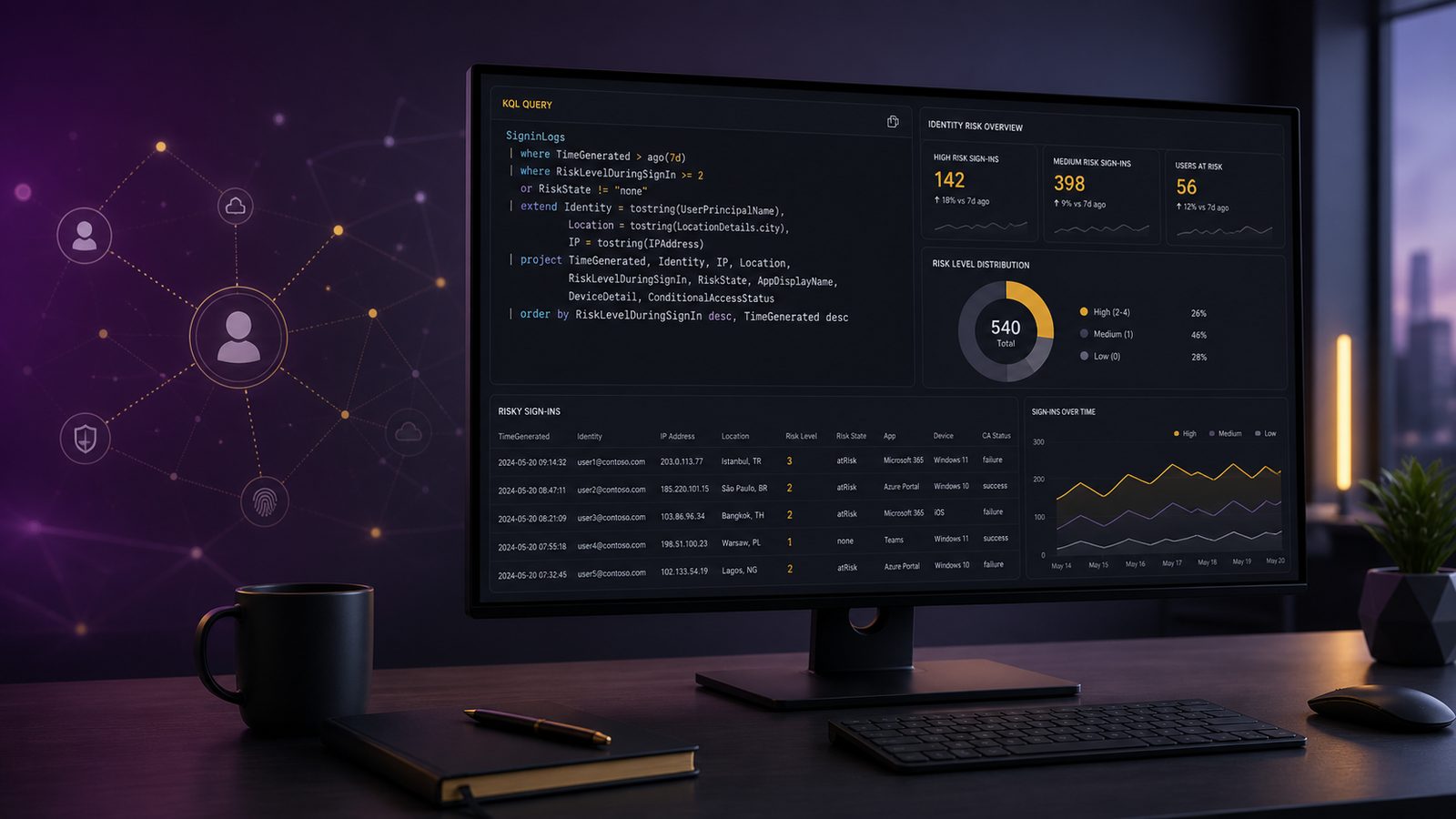
Risky sign-ins are one of the most useful identity signals you can monitor in Microsoft Sentinel, especially if your environment is heavily dependent on Microsoft 365 and Entra ID for access. For UK SMEs, the value is not just in spotting suspicious logons. It is in getting enough context to decide quickly whether an account needs verification, temporary containment, or simply a closer look.
This article focuses on KQL threat hunting with Microsoft Sentinel for identity investigations, with a specific emphasis on Entra ID risk data. The aim is to help you build queries that are practical in day-to-day operations, not just technically correct in a lab.
Key takeaways
- Risky sign-ins and risky users are related but distinct, so good Sentinel hunts should check both event-level and identity-level signals.
- Start with SigninLogs, validate which risk fields are populated in your tenant, and build queries around the context you need for triage.
- Use aggregation, thresholds, and allow lists carefully to reduce noise without hiding meaningful identity abuse.
- Promote only the most stable, high-confidence hunting patterns into analytics rules and keep the rest in workbooks for review.
What risky sign-ins mean in Microsoft Entra ID
In Entra ID, a risky sign-in is an authentication event that Microsoft has flagged as potentially suspicious based on signals such as unfamiliar properties, leaked credentials, atypical travel, malware-linked activity, or other risk indicators. The exact signals depend on your licensing and configuration, but the operational point is the same: the sign-in deserves review because it may indicate compromised credentials or account misuse.
It is important to distinguish between a risky sign-in and a risky user. A risky sign-in is event-level and tied to a particular authentication attempt. A risky user is a broader identity state that accumulates risk across multiple signals and may persist beyond one session. In practice, a user can have one or more risky sign-ins without being marked as a risky user, and a risky user may have no current risky sign-in visible in your latest search window.
That distinction matters when you write KQL. If you only hunt risky sign-ins, you may miss the wider pattern. If you only look at risky users, you may miss the exact event that tells you when and where the suspicious access happened.
For teams already building identity detections, this sits naturally alongside broader identity monitoring and Zero Trust work. If you are still shaping your identity control model, it is worth aligning these hunts with your access policy design, as discussed in Designing Zero Trust architectures with Entra ID for UK SMEs.
What data you need in Sentinel before writing queries
Before you start hunting, confirm that Sentinel is receiving the right Entra ID data. In most environments, the key table is SigninLogs, which contains interactive sign-in events and a number of useful risk fields. Depending on your tenant and connector setup, you may also have AADNonInteractiveUserSignInLogs, AuditLogs, and identity protection-related telemetry exposed through Microsoft Defender or Entra integrations.
For risky sign-in hunting, the most useful fields in SigninLogs usually include RiskLevelDuringSignIn, RiskState, RiskDetail, Status, ConditionalAccessStatus, IPAddress, UserPrincipalName, AppDisplayName, DeviceDetail, and LocationDetails. Not every tenant populates every field consistently, so part of your job is to understand what is actually available in your workspace.
Retention and latency matter as well. If your log retention is short, you may only be able to investigate recent events and miss the wider pattern of repeated risk. If ingestion is delayed, a query that looks clean at 09:00 may become noisy by 09:20 when late-arriving records appear. For operational use, build your hunting windows with that delay in mind.
Licensing is another practical constraint. Some risk fields and identity protection capabilities depend on Entra ID P2 or equivalent licensing. If you do not have those fields, you can still hunt for suspicious sign-in patterns using IP, location, device, and conditional access context, but you should not expect the same fidelity.
If you are designing the broader logging pipeline rather than just the query layer, the article on centralised visibility across endpoints, identity, and network is a useful companion.
Core KQL patterns for finding risky sign-ins
The simplest useful pattern is to filter on risk-related fields and then project the context you need for triage. A basic hunt might look like this:
SigninLogs
| where TimeGenerated > ago(7d)
| where RiskLevelDuringSignIn in~ ("medium", "high")
   or RiskState in~ ("atRisk", "confirmedCompromised")
| project TimeGenerated, UserPrincipalName, IPAddress, AppDisplayName, RiskLevelDuringSignIn, RiskState, RiskDetail, ConditionalAccessStatus, LocationDetails, DeviceDetail
| order by TimeGenerated desc
This query is intentionally simple. It gives you a starting point for review and helps you confirm whether the risk fields are populated in your tenant. The in~ operator is useful when you want case-insensitive matching on risk values, although you should always verify the exact values present in your data because tenants and schema versions can differ.
Once you have the basics working, add aggregation. For example, if you want to see which users are generating the most risky sign-ins over a period, group by user and count events:
SigninLogs
| where TimeGenerated > ago(14d)
| where RiskLevelDuringSignIn in~ ("medium", "high")
   or RiskState in~ ("atRisk", "confirmedCompromised")
| summarize RiskySignIns=count(), FirstSeen=min(TimeGenerated), LastSeen=max(TimeGenerated) by UserPrincipalName
| order by RiskySignIns desc
That pattern is useful for spotting repeated exposure, but it should not be treated as proof of compromise. A small number of repeated risky sign-ins may reflect a user who is travelling, changing devices, or repeatedly failing conditional access checks. The query gives you prioritisation, not certainty.
To connect sign-in risk with identity state, you can join SigninLogs to identity risk data if it is available in your workspace. The exact table name and schema may vary by connector and licensing, so validate this in your tenant before operationalising it. A common approach is to join on user principal name and a time window so you can see whether a risky sign-in aligns with a broader risky user state:
let RiskySignIns = SigninLogs
| where TimeGenerated > ago(7d)
| where RiskLevelDuringSignIn in~ ("medium", "high")
   or RiskState in~ ("atRisk", "confirmedCompromised")
| project TimeGenerated, UserPrincipalName, IPAddress, AppDisplayName, RiskLevelDuringSignIn, RiskState, RiskDetail;
RiskySignIns
| summarize SignInCount=count(), LastSeen=max(TimeGenerated) by UserPrincipalName
| order by SignInCount desc
In many environments, that is enough to build a useful first-pass hunt. If you want to go further, enrich the result with device posture or conditional access outcomes. That helps you answer the question that matters in triage: was this sign-in blocked, challenged, or allowed?
Practical query examples for common investigations
One of the most common investigations is, “Which risky sign-ins happened in the last 24 hours, and from where?” This query gives you a compact view of the event, the user, the source IP, and the access context:
SigninLogs
| where TimeGenerated > ago(24h)
| where RiskLevelDuringSignIn in~ ("medium", "high")
   or RiskState in~ ("atRisk", "confirmedCompromised")
| project TimeGenerated, UserPrincipalName, IPAddress, AppDisplayName, RiskLevelDuringSignIn, RiskState, RiskDetail, ConditionalAccessStatus, LocationDetails
| order by TimeGenerated desc
If you are looking for repeated activity from the same source, group by IP address. This can help you spot a single origin generating multiple risky attempts across different accounts, which is often more actionable than a long list of isolated events:
SigninLogs
| where TimeGenerated > ago(7d)
| where RiskLevelDuringSignIn in~ ("medium", "high")
   or RiskState in~ ("atRisk", "confirmedCompromised")
| summarize RiskyEvents=count(), Users=dcount(UserPrincipalName), Accounts=make_set(UserPrincipalName, 10) by IPAddress
| order by RiskyEvents desc
For small security teams, this is a good way to separate a one-off user issue from a broader campaign. If one IP is associated with multiple users, it deserves faster attention than a single event from a known corporate VPN exit point.
Another useful pattern is to add device and location context to high-risk events. That can help you understand whether the sign-in came from a managed device, an unmanaged endpoint, or an unexpected geography:
SigninLogs
| where TimeGenerated > ago(30d)
| where RiskLevelDuringSignIn =~ "high" or RiskState =~ "confirmedCompromised"
| extend DeviceName=tostring(DeviceDetail.deviceDisplayName), OS=tostring(DeviceDetail.operatingSystem), Browser=tostring(DeviceDetail.browser)
| project TimeGenerated, UserPrincipalName, IPAddress, AppDisplayName, DeviceName, OS, Browser, LocationDetails, ConditionalAccessStatus, RiskDetail
| order by TimeGenerated desc
If you already use process and endpoint telemetry for follow-up, it can be helpful to correlate identity events with endpoint activity. That is where broader detection work, such as detecting fileless malware and living-off-the-land attacks, becomes relevant because identity compromise often leads to endpoint abuse shortly afterwards.
How to interpret the results
Risky sign-in data is useful, but it is not a verdict. Microsoft risk scoring is probabilistic, and the same signal can be caused by legitimate behaviour. A user travelling between offices, using a new device, or authenticating through a different ISP may trigger a risk event without any malicious activity.
When reviewing results, look for combinations rather than single indicators. A high-risk sign-in from an unmanaged device, followed by unusual app access and a failed conditional access policy, is more concerning than a medium-risk sign-in from a known corporate laptop that was immediately challenged by MFA.
False positives are common enough that you should expect to tune your queries. Typical benign causes include:
- New device enrolment or browser changes
- VPN or remote access egress points that change source IP
- Travel between countries or regions
- Conditional access policy changes that alter the risk outcome
- Users clearing cookies or using private browsing sessions
Escalation should be based on the totality of the evidence. If the sign-in is high risk, the user reports no legitimate activity, and the event is followed by mailbox rule creation, consent grants, or unusual file access, then the case moves from investigation into containment territory. If the event is isolated and the user can explain it, you may only need to document the outcome and continue monitoring.
For teams that want a structured way to think about containment and response, the article on incident triage and escalation workflows in SOC operations is a good operational companion.
Tuning queries for operational use
Ad hoc hunting queries are useful, but they become much more valuable when tuned for repeat use. Start by reducing noise with thresholds. For example, you might only alert when a user has two or more risky sign-ins in 24 hours, or when a high-risk sign-in comes from a country you do not normally operate in.
Allow lists can also help, but use them carefully. If you exclude entire IP ranges or locations too aggressively, you may hide the very activity you want to detect. A better pattern is to allow list known corporate egress points, managed service accounts, or specific test tenants, while keeping the rest of the query broad enough to catch new behaviour.
Here is a simple threshold-based pattern:
SigninLogs
| where TimeGenerated > ago(24h)
| where RiskLevelDuringSignIn in~ ("medium", "high")
   or RiskState in~ ("atRisk", "confirmedCompromised")
| summarize RiskySignIns=count(), IPs=make_set(IPAddress, 5), Apps=make_set(AppDisplayName, 5) by UserPrincipalName
| where RiskySignIns >= 2
| order by RiskySignIns desc
To turn a hunting query into an analytics rule, keep the logic deterministic and the output fields stable. Sentinel analytics rules work best when the query returns a clear set of entities and a manageable number of alerts. Avoid overcomplicated joins if they do not materially improve triage quality.
In practice, a good rule should answer three questions quickly: who was affected, what happened, and what should the analyst check next. If your query does not help with those questions, it is probably still a hunt rather than an alert.
Using Sentinel workbooks and alerts for ongoing monitoring
Workbooks are often the right place to start if you want a repeatable review process without immediately creating alert fatigue. A workbook can show risky sign-ins by user, IP, app, country, and risk level, giving your team a consistent view during daily or weekly reviews.
For small teams, a practical workflow is to review the workbook on a fixed cadence, then promote only the highest-value patterns into analytics rules. That keeps the alert queue manageable and avoids turning every identity anomaly into a ticket.
Alert routing should be simple. Route high-confidence risky sign-ins to the person or team responsible for identity response, and include enough context in the incident to avoid manual re-querying. At minimum, include the user principal name, source IP, app, risk level, risk state, and conditional access result. If you can add device and location details, triage becomes much faster.
If your organisation is still maturing its logging and monitoring capability, it may help to revisit the basics in what security logs you actually need and why before expanding into more advanced identity hunts.
Common pitfalls when hunting Entra ID risk in KQL
The most common mistake is using the wrong table or the wrong time window. If you query too narrowly, you miss the lead-up or follow-on activity. If you query the wrong table, you may think there are no risky sign-ins when the data is simply elsewhere.
Another frequent issue is confusing sign-in risk with user risk. They are related but not interchangeable. If you only search for one, you may miss the other. In an investigation, it is usually worth checking both the event and the identity state.
A third pitfall is assuming that a risk field will always be populated. In some tenants, the field may be blank for certain app types, non-interactive sessions, or older records. Build your queries so they fail gracefully when a field is missing, and validate the output against known test cases.
Finally, do not overfit your query to a single incident. Identity risk patterns change as users change devices, locations, and working habits. A query that works well today may become noisy after a VPN change or a new conditional access policy. Review and tune it regularly, ideally as part of your detection improvement cycle.
That improvement cycle is easier to sustain when it is linked to your wider security operating model. If you are building that capability from the ground up, continuous improvement loops in security operations is worth reading alongside this guide.
Closing thoughts
KQL queries for detecting risky Entra ID sign-ins in Sentinel are most effective when they are built around a clear investigation question and a realistic operational workflow. Start with the risk fields you have, enrich the result with device and location context, and then tune the query so it supports both hunting and alerting without overwhelming the team.
For UK SMEs, the goal is not to chase every anomaly. It is to identify the sign-ins that matter, understand them quickly, and respond in a way that fits your risk appetite and staffing model. If you want help shaping Sentinel detections, identity response workflows, or a broader ISO 27001-aligned monitoring approach, Speak to a consultant.
Frequently asked questions
How to check risky users in Entra ID?
Use Entra ID identity protection views or Sentinel queries that correlate sign-in risk with user risk state. In Sentinel, start by reviewing SigninLogs for risky sign-ins, then check whether the same user appears in identity risk data or has repeated events over time.
What is the difference between risky user and risky sign-in?
A risky sign-in is a suspicious authentication event, while a risky user is an identity that has accumulated risk across one or more signals. A user can have a risky sign-in without being a risky user, and a risky user may not have a current risky sign-in in your chosen time window.
Does Microsoft Sentinel use KQL?
Yes. Microsoft Sentinel uses Kusto Query Language, usually shortened to KQL, for hunting, workbook queries, scheduled analytics rules, and incident investigations.
What is the difference between confirm sign-in safe and dismiss sign-in risk?
Confirm sign-in safe is used when you have reviewed a sign-in and believe it was legitimate. Dismiss sign-in risk is used when the risk signal is judged to be a false positive or no longer relevant. The exact workflow depends on your Entra ID setup and permissions.
Comments are closed